Last updated:
Quick answer
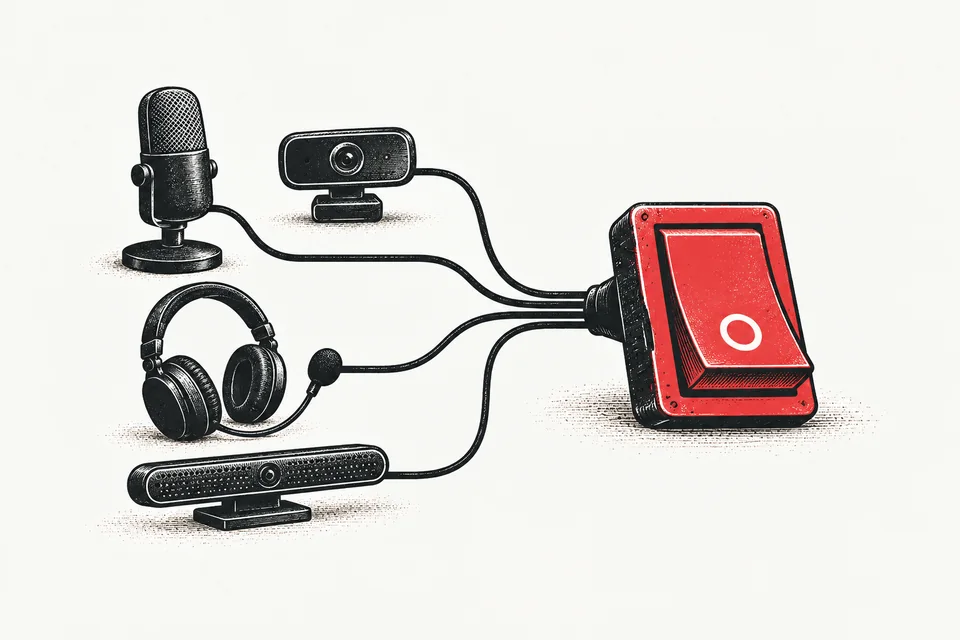
macOS has no single "mute all microphones" switch. Its input volume and mute controls act on one input device at a time, and each call app can choose its own mic. To silence every microphone at once, turn each one down in Audio MIDI Setup, or turn on Mute every input device in Am I on Mute? (free) so that one mute covers every connected mic.
How many microphones does my Mac have?
Every microphone macOS can see is a separate input device. A typical desk can have several at once:
- Built-in microphone on a MacBook or iMac.
- Webcam microphone. Most external webcams include one.
- Display microphone. Apple's Studio Display has one, as do some other USB-C and Thunderbolt monitors.
- USB microphone or audio interface.
- Headset, wired, USB or Bluetooth, including AirPods.
- iPhone, when used as a microphone through Continuity Camera.
To see the full list, open System Settings → Sound and look under Input. Each row is a separate microphone.
Why does muting one microphone leave another one live?
macOS keeps one input as the default. The input volume slider in Sound settings, and mute where a device supports it, act on the selected input only. Every other mic is left as it was.
Call apps don't have to use the default. Zoom, Teams, Google Meet and Slack all let you pick a microphone in their own audio settings. If Zoom is set to your webcam mic and you mute your USB mic, Zoom still hears you through the webcam.
Identical devices make it worse. Two of the same display, such as a pair of Studio Displays, can appear as two inputs with the same name, so the list can't tell you which one your meeting is using.
And macOS may switch your default input when you plug something in, which we cover in why your Mac picks the wrong microphone.
How do I mute all my microphones using macOS settings?
There's no built-in way to do it in one step, but you can do it one device at a time.
Option 1: System Settings → Sound
- Open System Settings → Sound.
- Under Input, select a microphone.
- Drag Input volume all the way to the left.
- Repeat for every input in the list.
- Select the mic you normally use again, so it's back as the default.
Limits: selecting each mic changes your default input as you go, the slider isn't available for devices that don't offer a volume control, and nothing reminds you later which mics you turned down.
Option 2: Audio MIDI Setup
- Open Audio MIDI Setup from Applications → Utilities, or search for it with Spotlight.
- Select an input device in the sidebar.
- Click the Input tab.
- Where the device supports it, tick Mute or drag the volume to the left.
- Repeat for every input device.
Limits: it doesn't change your default input, which is better, but it's still one device at a time, the controls are greyed out on devices that don't provide them, and you have to undo every change before you speak.
Option 3: Hardware mute buttons
Many USB mics and headsets have a physical mute button. It works for that one device only, and it's worth checking whether yours shows a light when muted.
Which way of muting covers every mic?
| Method | All mics in one step? | Works in every app? | Shows mute status? |
|---|---|---|---|
| System Settings → Sound | No, one at a time | Yes, for that mic | No |
| Audio MIDI Setup | No, one at a time | Yes, for that mic | Only in its window |
| Call app's mute button | Mutes you in that call only | No, that app only | Inside the app |
| Hardware mute button | No, that device only | Yes, for that device | Depends on the device |
| Am I on Mute? with Mute every input device | Yes | Yes | Yes, floating button and menu bar |
How do I mute every microphone at once with Am I on Mute?
- Install Am I on Mute? from the Mac App Store.
- Click its menu bar icon and choose Settings…
- In General, turn on Mute every input device.
- Mute as usual: click the floating button, press ⌘⇧M from any app, or Option-click the menu bar icon.
With the option on, muting applies to every connected microphone, not just the default one. The option is free.
Different mics are handled differently:
- Mics with a mute control are muted directly.
- Mics with only a volume control, such as the RØDE NT-USB Mini, are muted by lowering their input level. The level is restored when you unmute.
- Mics with neither, such as an iPhone used as a Continuity mic, can't be muted by the Mac at all. Am I on Mute? shows LIVE and explains why. See why an iPhone mic can't be muted from your Mac.
After you mute, the free mute check listens to confirm the mic actually went quiet. If it didn't, it warns "Your Mic Is Still Live" and offers to switch to the built-in mic and mute it.
You can also switch your input from the menu bar icon's Input Device menu, which is quicker than opening System Settings.
Should I mute every mic, or just choose the right one?
If you only ever use one microphone, set your call apps to follow the system input ("Same as System" in Zoom) and mute that one mic.
If you have a webcam, a display mic and a USB mic all connected, or two devices with the same name, muting everything is the safer default. It removes the question of which mic the call is really using.
Frequently asked questions
Is there a way to mute all microphones on a Mac at once?
Not with macOS alone. System Settings and Audio MIDI Setup only change one input device at a time. Am I on Mute? has a free option, Mute every input device, that mutes every connected microphone with one click or ⌘⇧M.
Why can people still hear me after I muted my microphone?
Your call app is probably using a different microphone from the one you muted. Check the microphone setting in the call app's audio settings, or mute every input device so it doesn't matter which one it uses.
Does setting input volume to zero mute my Mac's microphone?
On many microphones it does, but only for the one device you selected. Some mics don't offer an input volume control in macOS, and the setting doesn't affect any other microphones.
How do I mute two Studio Displays at the same time?
Two identical displays can appear as two microphones with the same name, so it's hard to tell which one a call is using. Turn on Mute every input device in Am I on Mute? and both are muted together.
Can I mute an iPhone used as a Mac microphone?
Not from the Mac. macOS has no mute or volume control for an iPhone used as a Continuity microphone. Mute in your call app, switch back to another microphone, or disconnect the iPhone.
Works with every call app
One mute for every mic
Turn on Mute every input device and a single click or ⌘⇧M silences every microphone on your Mac. Free.
Free forever · 30-day Pro trial · No credit card needed